Librus school ID photos
In Polish schools that use Librus, the photo for the e-ID card is uploaded by the student, parent or guardian in Librus Synergia or in the mobile app, and the school office approves it. Below are the steps and the sizes most often required. The final requirements are set by your school.
Crop your photo for Librus No account. Your photo stays in your browser.
How to upload the photo in Librus Synergia (browser)
You upload the photo after signing in to Librus Synergia, in the alternative view, under Kartoteka – Zdjęcie do legitymacji (Records – ID photo). The system shows the guidelines, asks for a declaration, lets you crop the file and sends it to the school office.
- Sign in to Librus Synergia The photo panel works in the alternative view, so after signing in first choose “Widok alternatywny” (Alternative view).
- Choose Kartoteka – Zdjęcie do legitymacji It is in the menu on the left. You will see the requirements and examples of correct and incorrect photos.
- Tick the declaration Confirm that you have read the guidelines and the photo meets them, then click “Przejdź dalej” (Continue).
- Select the file Drag the photo in or choose it from your disk. The app lets you crop it and takes care of compression.
- Save and send to the school Click “Zapisz zdjęcie i przejdź dalej” (Save photo and continue). The photo goes to the school office and you can follow the approval status in the panel.
Uploading the photo in the Librus mobile app
In the Librus mobile app you add the photo in the school ID photo view. The process is similar to the browser: guidelines, declaration, file selection and sending to the school. You can change the photo later or ask for it to be removed.
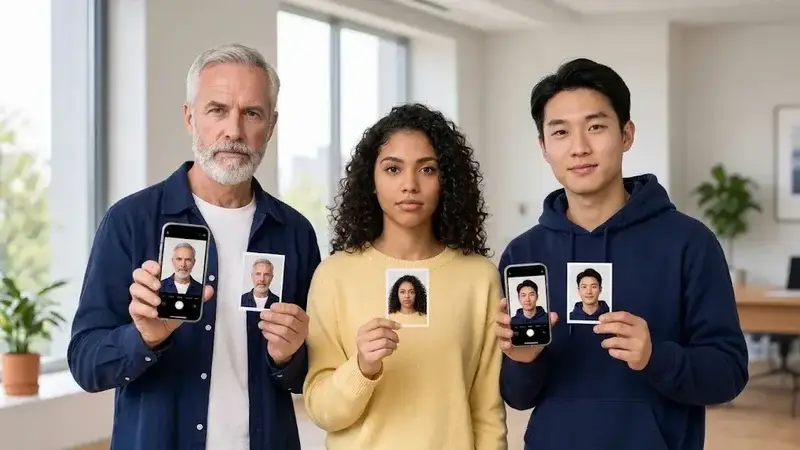
What photo will the school accept?
Librus does not impose a single size on every school: you see the guidelines in the upload window and the school may have its own. The most common parameters are in the table — check with the school office which variant applies at your school.
| Parameter | Most often | Note |
|---|---|---|
| Proportions | 35 × 45 mm | Same as an ID-card photo |
| Size in pixels | at least 492 × 633 px | As for an online ID application (gov.pl); some schools: 354 × 496 px |
| File format | JPG / JPEG | Colour, sharp, on a light plain background |
| Maximum file size | 1 to 5 MB | Depends on the school — confirm with the office |
How to prepare the photo in LegiPhoto before uploading to Librus
The simplest way is to crop the photo in LegiPhoto to the school ID format, download the JPG and only then upload it in Librus. The photo is processed locally in your browser and never reaches our server.
- Choose the format In LegiPhoto choose “School ID / e-ID” (35 × 45 mm, at least 492 × 633 px).
- Upload and crop Add a photo from your phone or computer and set the frame: face towards the camera, light plain background.
- Download the JPG Download the file and check it does not exceed the size limit given by your school.
- Upload in Librus Add the file in Librus. The Librus tool may let you crop and compress the photo once more.
Changing or removing the photo in Librus
You change the photo with the “Zmień zdjęcie” (Change photo) button in the top right corner of the screen. To remove it, you send a removal request and the school office approves or rejects it. You receive a system message when the status changes.
- In the mobile app: school ID photo view → “Zgłoś prośbę o usunięcie zdjęcia” (Request photo removal).
- In the browser: Librus Synergia → Kartoteka – Zdjęcie do legitymacji → “Zgłoś prośbę o usunięcie zdjęcia”.
- The office sees the request with the status “Prośba o usunięcie” (Removal request) and can approve or reject it.
Frequently asked questions about the Librus photo
Answers about adding, sending, sizing and removing a school ID photo in Librus.
How do I add a school ID photo in Librus?
Sign in to Librus Synergia, choose the alternative view, then Kartoteka – Zdjęcie do legitymacji, tick the declaration, select the file, crop and save. The photo goes to the school office, which approves it. You can do the same in the Librus mobile app.
How do I send a photo through Librus?
After cropping, click “Zapisz zdjęcie i przejdź dalej” (Save photo and continue) — Librus sends the file to the school office. You can check approval status in the panel. The mobile app follows the same flow: pick a file, crop, and send to the school.
What size should the Librus school ID photo be?
Most often 35 × 45 mm proportions and a JPG of at least 492 × 633 px, with a file-size limit usually between 1 and 5 MB. Some schools give other values, e.g. 354 × 496 px, so confirm the requirements with the office or in the Librus upload window.
Who can upload the photo in Librus?
The student, parent or guardian, through the browser (Librus Synergia) or the Librus mobile app. After upload the school approves the photo.
How do I remove a photo from Librus?
Send a “Zgłoś prośbę o usunięcie zdjęcia” request in the app or in Synergia (Kartoteka – Zdjęcie do legitymacji). The school office approves or rejects it and you receive a system message about the status change.
Can I use LegiPhoto for a Librus photo?
Yes. Choose the school ID format, crop the photo, download the JPG and then upload it in Librus. LegiPhoto processes the photo locally in your browser and does not send it to a server. LegiPhoto is not affiliated with Librus.
Did it help? Buy us a coffee
LegiPhoto is free and needs no account. A voluntary coffee helps us keep improving it.
Buy us a coffeeSources and note
- Librus e-ID photo upload instructions (SOSW Poznań, school year 2024/2025; Polish)
- gov.pl — photo for an ID card or passport (appearance, 492 × 633 px; Polish)
LegiPhoto is an independent tool and is not an official government service. Requirements of offices and universities can change — before you apply or upload the file, confirm dimensions, format and file-size limits with the recipient.
Photos for other documents
Published: · Last updated: